There are times when the network is working, the equipment is functioning and other devices are connected and operating fine but there is that one device giving you problems. Each device stores its own connection settings for the network. If those settings become outdated or don’t sync properly with the router, that device may have trouble connecting even though everything else works.
Whether it be a PC, tablet, smart phone, or TV, sometimes the connection with the router can be compromised and one of the best ways to address this is to clear out anything that can be causing a problem connecting. Any network capable device has the ability to remove and re-add the network.
Windows 11 PC
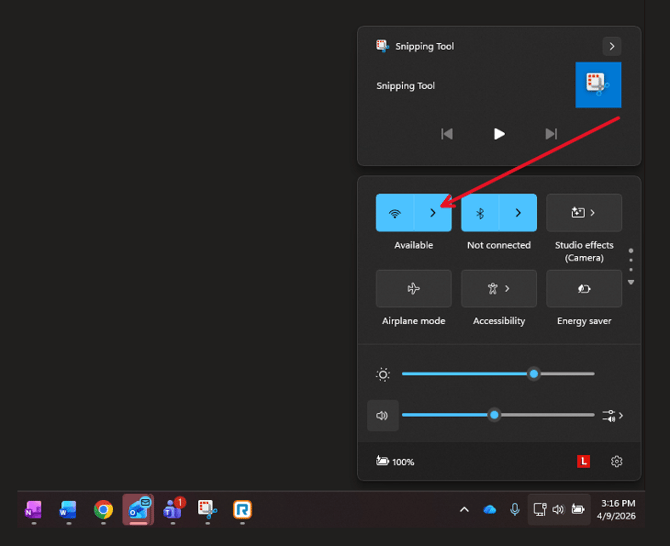
Navigate to the network icon in the task bar at the bottom of the screen. Select the Available networks by clicking the right arrow.
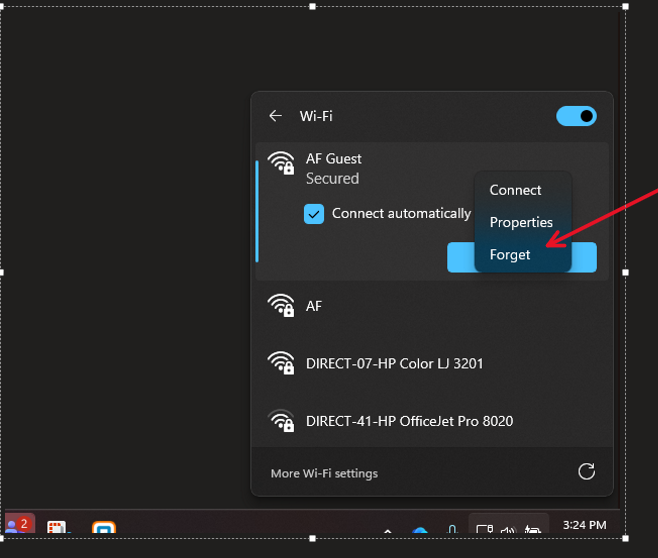
Select your network that you are trying to remove, right click, and select "Forget"
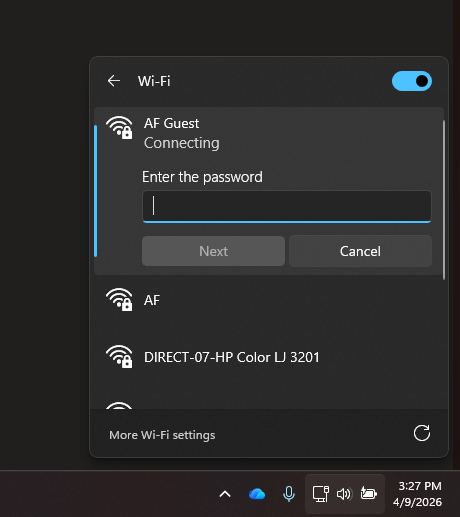
You will see that network again as an option, when you select connect it will ask you to enter your password.