
There are a few ways you can set up content filters in the eero app. Below are walkthroughs from different entry points.
From the Security & privacy Settings
- From the Home tab, tap Security & Privacy.
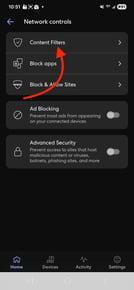
- Next, tap Network controls.
- Tap Content Filters
- Tap on a profile you'd like to set up content filters for.
- Select a filter level that fits your profile's needs.
- Tap Apply to confirm the filter level
- Once you apply the filter level, you'll be taken to the content filter toggle screen where you can configure the settings to your liking.
.jpeg?width=137&height=297&name=Media%20(9).jpeg)
.jpeg?width=137&height=296&name=Media%20(10).jpeg)
.jpeg?width=134&height=291&name=image_jpeg%20(1).jpeg)
.jpeg?width=136&height=295&name=image_jpeg%20(2).jpeg)
.jpeg?width=135&height=293&name=image_jpeg%20(3).jpeg)
.jpeg?width=137&height=297&name=image_jpeg%20(4).jpeg)